Showing posts with label OBIEE 11g Administration. Show all posts

Friday, December 9, 2016

OBIEE Analysis View Display Error Maximum cells exceeded Error EY692ZW9 [Solved]

Issue: When trying to export a OBIEE Analysis to 

View Display Error Maximum total number of cells exceeded (Configured Limit: 50000). Error Codes: EY692ZW9

Cause: Max rows parameter and tag not set at instanceconfig.xml file.

Solution: In the instance config file at 

/user/app/oracle/product/fmw/12.2.1/user_projects/domains/bi/config/fmwconfig/biconfig/OBIPS add a sub tag under <pivot> and <table> tags.

Set this parameter accroding to your requirement. We wanted to take some very big excel files and hence set the same as below,


<MaxCells>Value</MaxCells>

For the same to get effected you must once restart the BI Presentation service from Enterprise Manager. 


Tuesday, November 29, 2016

Significance of nohup command for Weblogic/OBIEE in Unix/Linux ?

So you must be knowing that you can start an OBIEE server on linux with the following two commands, 

  • ./start.sh


  • nohup ./start.sh > start_1.log
So why use the nohup command when you can directly run the shell script without it. The basic difference between the two is that when you run a shell script with nohup, even after logging out from the terminal it runs in the background. This is not the case with direct execution, where when you close the terminal the process is also aborted. 

For an example, if we startNodeManager.sh file with direct  execute command, you will be able to see the log of how it is starting up. The nodemanager will eventually startup. The problem with this is that when you close the terminal, the nodemanager will go down. Inorder to avoid this what you can do is to run the shell script with nohup command. 

With nohup command the linux process is not aborted when the terminal is closed. So when you run nodemanager with a nohup appended command. It tells the server to run the process in background.  

There is two ways to write the nohup command for executing scripts.
  • nohup ./start.sh
The above command will create a file named nohup.out in the same folder where the logs of the execution will be written to. 

  • nohup ./start.sh > start_29112016.log
The above command writes to a file named start_29112016.log . 

I am new to linux, so any suggestions are welcome. Please feel free to write your comments below. 


Wednesday, October 19, 2016

OBIEE 12c Analytics Login Authenitcation Failure - NQODBC nQSError: 10018 [SOLVED]

This is one of the issues that took up a lot of time of ours.

Issue: OBIEE throws the following error when trying to login to analytics using weblogic username and password.

[OBIPS] [NOTIFICATION:1] [] [saw.securitysubsystem.checkauthentication.runimpl] [ecid: 667216e2-5177-4c25-86d2-b97ad8d56fa7-000002b2,0:1:1] [tid: 1830131456] [SI-Name: ] [IDD-Name: ] [IDD-GUID: ] [userId: ] Authentication Failure.
Odbc driver returned an error (SQLDriverConnectW).
State: 08004.  Code: 10018.  [NQODBC] [SQL_STATE: 08004] [nQSError: 10018] Access for the requested connection is refused.
 (08004)
State: HY000.  Code: 43113.  [nQSError: 43113] Message returned from OBIS.
 (HY000)
State: HY000.  Code: 43126.  [nQSError: 43126] Authentication failed: invalid user/password. (HY000)[[
File:checkauthentication.cpp
Line:1534
Location:
saw.securitysubsystem.checkauthentication.runimpl
saw.threadpool.asynclogon
saw.threads
]]


Cause: We spent a lot of time trying to find the root cause of the issue. We checked metadata schemas, boot.properties, multiple restarts, created new users and many others. The actual cause was that we have two LDAP's defined, one default weblogic LDAP and the other client LDAP server. 

The problem was that the Client LDAP server was throwing a connection error while trying to connect. The LDAP server administrator credentials were changed.  

The authentication process first checks credentials against client LDAP. Which refused the connection and hence the error,

Code: 10018. [NQODBC] [SQL_STATE: 08004] [nQSError: 10018] Access for the requested connection is refused.

Resolution: Update the Client LDAP providers with the latest credentials and then restart the server. 

Another work around is to change the client LDAP provider control flag to optional.

Wednesday, May 4, 2016

What is the OBIEE RPD File and it's Significance ?

The RPD file or Repository is the heart and soul of an OBIEE instance. We discussed earlier in one of our previous posts that Oracle BI has two kinds of metadata, one that exist in database tables and the other which exists in file format. The RPD file is the one of the OBIEE metadata that exists in physical file format, the other being the presentation catalog. 

What does the OBIEE RPD contain ?

The OBIEE RPD is where all the metadata related to a data warehouse or a data source is stored. It basically contains all the OLAP tables which are used to populate graphs and charts, the physical joins between the data. The star schema design/BMM design which tells the BI Server how OBIEE server should fire the query to the data warehouse/database.

The Repository is mainly composed of three layers:

1.Physical Layer 

 This is where you import all your Data warehouse tables. You create your database connection here along with the credentials to connect to the warehouse schema. You can also specify options like connection pooling, timeout option and various other database parameters.

Here you create Alias Tables for all the tables and define the joins between these tables. The joins defined here are inner joins. You can safely say that things relating to the database resides here. 

2.Business Model and Mapping(BMM) Layer

The BMM layer or Business Model and Mapping Layer is where you define the relation between the tables that you had earlier imported to your Physical Layer. Here you define your BMM diagram,  create hierarchies for your dimensions define complex joins between your database tables, set aggregation for measures.  You can also define complex calculations to facts here, however it is recommended to push all complex calculations to database or during the data load to the data warehouse.

Inside the RPD, arguably this is the most important layer as this is where each business process is defined in a way that OBIEE server understands. It is very crucial that the BMM model is designed properly for a compact BI Analytics implementation.

3. Presentation Layer

The presentation layer is what the end user or the BI Author user would see when they log in to the Analytics. The BI Author or the report developer pulls data from this layer using the web UI. It is important that the dimensions and facts are properly organised in this layer so that somebody developing the report would be able to easily pull in columns and build a report.

RPD Location - You can find the RPD file under the Middleware Home folder in your OBIEE server. The exact location to find the RPD file is as below,

MW_HOME/instance/instance1/bifoundation/OracleBIServerComponent/Repository/

In this folder you will be able to find the Repositories that have been deployed over time. To get the currently used RPD name go to Enterprise Manager > CoreApplication > Deployment Tab.

Which component of OBIEE manages the RPD file ?

It is the OracleBIServer component which comes under OracleBI11g components that handles and communicates to the repository file. Every time a request comes from the Web UI(Presentation layer). The OBIEE server refers to the metadata residing in Repository file to convert the same to a Physical SQL query. The data from the SQL query is sent back to analytics for use in reports.

Wednesday, February 3, 2016

BEA-090402:OBIEE Boot Identity Not Valid - Authentication Denied [SOLVED]

Issue: We faced the issue on a Linux Server when trying to Start Weblogic Script. 
<Authentication denied: Boot identity not valid; The user name and/or password from the boot identity file (boot.properties) is not valid. The boot identity may have been changed since the boot identity file was created. Please edit and update the boot identity file with the proper values of username and password. The first time the updated boot identity file is used to start the server, these new values are encrypted.>
Cause: This issue could be because the credentials inside the boot.properties file is not valid. This credentials could change while stopping the weblogic server and you are prompted to give password here and if you give the wrong credentials during shutdown it will be written to the boot.properties file.
Issue in Terminal Window
Resolution: The issue can be resolved by changing the password in the boot.properties file and restarting again.

Chrome Update: RC4 Cipher not Supported in Weblogic SSL / OBIEE [SOLVED]

Google Chrome in it's latest update ( Version 48 ) stopped support for the RC4 Cipher. Which would mean that all Weblogic Installations with SSL implementation using this Cipher key will fail to load.

RC4 Cipher was used as a work around when last year during one of chrome's update Diffie-Hellman Public Key had expired. Now after the version 48 update, Google no longer considers the RC4 cipher as secure enough. 

So when you access any page hosted on weblogic using the SSL implemented URL you will get the following error on screen, 

ERROR_SSL_VERSION_OR_CIPHER_MISMATCH 
 The Client and Server don't support a common SSL protocol version or cipher suite. This is likely to be caused when server needs RC4, which is no longer considered secure. 

The resolution for the same is to remove the RC4 Cipher key and add a new key that Google Chrome 48 supports the issue. A friend of mine has documented the resolution at his blog. 

Saturday, January 2, 2016

What is RCU in OBIEE 11g ?

The RCU or the Repository Creation Utility is a small application that comes with OBIEE 11g Installation files. The purpose of the RCU is to load the two Operational Metadata schemas for OBIEE Installation into an RDBMS system, 

  • BIPLATFORM Schema
  • MDS (Metadata Services) Schema
It basically runs a list of .SQL scripts that create new tables to store OBIEE operational metadata which will later be used by the Oracle BI 11g Instance. 

It makes life easier by running the table creation metadata so that user doesn't have to go through the pain of executing scripts in RDBMS one by one. 

Monday, December 14, 2015

[BIP 11g] Restarting/Stopping BI Publisher 11g Services

Here is how to restart BI Publisher 11g Services from Console. 

Go to console, if you are inside the server just open localhost:7001/console or just open hostname:7001/console. Once inside the console from the domain structure panel on the left side select 'Deployments' as seen below.

Go to bifoundation_domain > Deployments
 Next select BI Publisher from the list of services listed 


Next go the tab on the top with 'Start' and 'Stop' buttons and Click on Stop > Force Stop Now

Confirm the action


Check the BI Publisher URL to confirm that  BI Publisher is down. 


Once confirmed, Select 'bipublisher' and select Start > Servicing all requests .


Now check the BI Publisher URL again,


Sunday, October 18, 2015

How are OBIEE Metadata files stored ?

The metadata for an OBIEE Instance is stored both as Database tables and as Physical files.

Metadata in Database tables are stored in the Metadata Schema's


  • MDS (Metadata Services Schema)
  • BIPLATFORM 

  • The Physical metadata files for OBIEE are the
    • Repository (RPD)
    • Catalog Files
    The repository file can be found at the following location and will have the extension .rpd. 
    MW_HOME/instance/instance1/config/OracleBIServerComponent/coreapplication_obips
    The currently active RPD name can be checked from EM or from the instanceconfig.xml file. The repository file contains the details of Physical Tables, Physical and logical mappings, Presentation tables etc. 

    The catalog files are located the physical directory below,
    MW_HOME/instance/instance1/config/OracleBIPresentationServiceComponent/coreapplication_obips1
    The catalog contains Metadata for reports,prompts, dashboards etc and their permissions. The physical directory for the latest catalog displayed can be found from the EM.

    What is OPMN and it's functions ?

    OPMN stands for Oracle Process Management and Notification System that acts as a management service for different oracle components. In an OBIEE instance, the OPMN is responsible for controlling the different Oracle BI 11g components.

    Functions of OPMN are the following
    • Start and stop the OBIEE components separately or at once. 
    Oracle BI 11g system components
    • Restart an OBIEE component upon failure.
    The different Oracle BI components that OPMN works on are the following
    1. BI Presentation Services
    2. BI Server
    3. BI Schedulers
    4. BI Cluster Control
    5. BI JavaHosts
    The OPMN batch file can be accessed from the below location from the Middleware Home folder.
    FMW_HOME/instances/instance1/opmnctl.bat
    You perform the following operations using the opmnctl batch file,
    1. Start All
    2. Stop All
    3. Start Procedure
    4. Restart Procedure 
    5. Stop Procedure
    6. Status
    eg CMD scripts:

    • Start all - opmnctl startall
    • Stop all - opmnctl stopall
    • Startproc - opmnctl startproc ias-component=OracleBIServerComponent
    • Restart process - opmnctl restartproc ias-component=OracleBIServerComponent
    • Stop process - opmnctl stopproc ias-component=OracleBIServerComponent
    • Status - opmnctl status You can also invoke the OPMN services from Enterprise Manager.

    Friday, September 25, 2015

    Find version of Weblogic Server

    There are multiple ways to check the version of a Weblogic Server.

    Here is how to check the version of Weblogic Server even if the server is down or up.

    Weblogic Server Down

    Go to the MiddleWare Home folder in your system/server. Then inside the MW_HOME folder go to the folder that starts with wlserver and inside the folder go to .product file

    Go to Weblogic Folder inside MiddleWare home and open the .product file.

    Note: Make sure you enable 'show hidden files' option in windows. 

    Check for the entry WLS_PRODUCT_VERSION.

    Inside the .product Properties file check for WLS_PRODUCT_VERSION and it's corresponding entry, In our case it is 10.3.5.0 

    Weblogic Server Up

    When the weblogic sever is up and running, we can check the version by going to the console appilication at http://SERVERHOSTNAME;7001/console and at the right hand bottom corner you will be able to see the version of weblogic as in the screenshot below, 


    Tuesday, September 8, 2015

    [OBIEE 11g] Find Weblogic Nodemanager Port Number for OBIEE 11g

    For Enterprise OBIEE Installation the default port number is 9556. There are two methods to find the Nodemanager port number,
    1. From Weblogic Console
    2. From MW_HOME location
    The Nodemanager port number can also be checked from the console application, After logging into console go to the following path,

    Home >Summary of Servers >bifoundation_domain >Summary of Machines >MACHINE_HOST_NAME


    Path to check Node Manager details

    Listen port is the Node Manager Port Number
    To confirm the same, follow these steps
    1. Open Middleware Home folder
    2. Open Oracle_BI1
    3. Open the install folder
    4. Open the ports.properties file and check for the below entry,
    NODE_MANAGER_PORT=9556
    The port which the NODE_MANAGER_PORT file is referring to will be the port used by Weblogic Nodemanager. You can also find more entries in the ports.properties file. 

    Saturday, August 22, 2015

    [Solved] Oracle SQL Developer JVM not Found Error

    Scenario: Setting up Oracle SQL Developer for the first time from inside Database home. The first time you try to run SQLDeveloper.exe you will be prompted for a JDK bin path. 

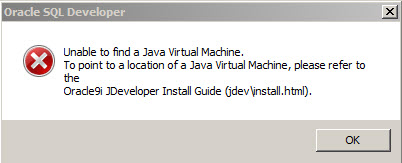
    At this step you might face an error as below,

    Unable to find Java Virtual Machine error
    Cause: The java path defined is a 64bit JDK.

    Resolution: Install a new 32bit JDK and then open the sqldeveloper.conf file from app/product/dbhome_1/sqldeveloper/sqldeveloper/bin and delete the JAVA_HOME entry as below,

    Changing JavaHome path
    After deleting run the SQLDeveloper.exe file and again you will be prompted for a JDK bin path. Now give the path to the new 32bit JDK you just installed. This will make SQLDeveloper run in your machine.

    Friday, May 22, 2015

    [OBIEE11g] nQSError:13041 Not able to login to Analytics with weblogic credentials


    Issue: Unable to login to analytics with weblogic user.


    Cause: nQSError: 13041 User weblogic does not match user reference GUID at the repository. This is because GUID of user in console and RPD is not matching.


    Resolution:  This can be done by deleting reference to weblogic user from RPD.  Steps followed are as below.


    Since we were able to log in to console, We did the following,

    •  Created a new user ‘athul’ from the security realms in console and added the same privileges as weblogic user from console.

    • Logged into Repository from Administration tool in online mode using athul user credentials and repository password.

    • Go to Manage > Identity manager and delete reference to the weblogic user.


    •  Now save the repository in online mode and go to analytics and try logging again. You will be able to log in successfully.

    Tuesday, April 7, 2015

    [OBIEE11g] Find port numbers of EM, Console, Analytics and XMLPServer

     
    Here is how to find port numbers of Enterprise Manager, Console and Analytics from an OBIEE installed server.

    1. Go to OBIEE Middleware Home folder (Say MW_HOME)
    2.  Go to MW_HOME/Oracle_BI1/Install
    3. Open ports.properties file -
    BISCHEDULER_SCRIPT_RPC_PORT=9707
    OPMN_LOCAL_PORT=9500
    BISERVER_PORT=9703
    WLS_BIFOUNDATION_SSL_PORT=9804
    BISCHEDULER_PORT=9705
    BICLUSTERCONTROLLER_MONITOR_PORT=9700
    BIJAVAHOST_PORT=9810
    WLS_BIFOUNDATION_PORT=9704
    BISERVER_MONITOR_PORT=9701
    OPMN_REMOTE_PORT=9501
    OPMN_REQUEST_PORT=9502
    DOMAIN_PORT=7001
    BISCHEDULER_MONITOR_PORT=9708
    NODE_MANAGER_PORT=9556
    BIPRESENTATIONSERVICES_PORT=9710
    BICLUSTERCONTROLLER_PORT=9706
    WLS_BIFOUNDATION_PORT = 9704 is the port number for Analytics. DOMAIN_PORT=7001 is the port number for Enterprise Manager installation.

    You can also open up setupinfo.txt file to get the installation details.

    Configure Components
            WebLogic Console
                http://HOSTNAME:7001/console
            Oracle Enterprise Manager
                http://HOSTNAME:7001/em
            Business Intelligence Enterprise Edition
                http://HOSTNAME:9704/analytics
            Business Intelligence Publisher
                http://HOSTNAME:9704/xmlpserver

    By default 9704, 7001 and 9804 are the port numbers for Analytics, EM and SSL.