Showing posts with label OBIEE Issues. Show all posts

Saturday, March 18, 2017

OBIEE Analysis Date Format as 0/0/0 [Solved]

Issue: We recently came across an error where client raised a defect that date comes up as 0/0/0 for some of the records.

Analysis: First we checked the particular records in the EDW target schema. We could see that the records are having date as null in the physical tables.

Cause: The root cause of this defect is that in the physical layer of the RPD for this particular column the nullable flag is not ticked. Since the nullable flag is not ticked, OBIEE expects a value here and substitutes 0/0/0 12:00:00 AM for null values.

The nullable flag property in OBIEE RPD Physical column object.
This could also happen if you manually change the data type from datetime to date. OBIEE imports date as datetime by default.

Resolution: Change the data type to datetime and tick the nullable flag. Once done, save and upload RPD to the server. Now clear your cache, reload files and metadata and check again. If that still doesn't change anything then do a restart of your presentation service.

Monday, October 31, 2016

BI Publisher CSV Ouptut showing number incorrectly as Exponential E+ [Solved]

Issue: We were trying to export a data set as CSV output using BI Publisher. The problem we faced is that when we take the output, One column which was having a large number (close to 16 digits) was showing up as an Exponential (E+). You can see a screenshot of the output below when opening the CSV file in a notepad.

Exponential values 

Cause: The issue is because the datatype was double. Double in BI Publisher gets changed to Exponential at time of output generation. 

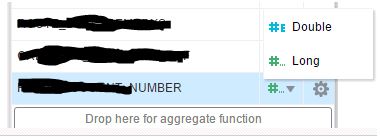
Resolution: The solution is fairly simple. You go to your data model and change the column datatype to Long instead of double. 


Now try again generating the CSV output. This worked well for us. 


Friday, October 14, 2016

OBIEE dashboard prompt not working after passing correct data value [Solved]

Issue: OBIEE Dashboard prompt not filtering report correctly despite passing same data value.

Cause: The issue was that the actual database column say for eg: X_STATUS was having trailing spaces in database. In OBIEE when you create a dashboard prompt from this column, OBIEE automatically does a trim of the data and presents it to you.

To make things simple, imagine I am having a status 'Accepted     '  in database. Note that there are 5 trailing spaces in this column in the physical table. When you create a dashboard prompt the trailing spaces are removed and shown inside prompt. So the data in the prompt is 'Accepted' instead of  'Accepted     '. Now what happens when you prompt is that the filter passed in physical SQL would be as below

SELECT X_STATUS FROM TABLE_NAME WHERE X_STATUS='Accepted'

Now when the query reaches the table, X_STATUS column is searched for 'Accepted' instead of the original data with 5 trailing spaces. Hence a match is not found.

Resolution: Issue debugging was followed in steps:

First we checked if the dashboard prompt presentation column and report filter column was the same. It was the same.

Next we checked the physical query log and found the query passed to database. Checked for a cache metadata hit. Next we took the query and executed in database. This gave as no result as we explained earlier.

Next we did a DISTINCT on the X_STATUS column. Which gave us all distinct values, from the value we copied the Accepted data column and pasted it inside two single quotes (''). If there are spaces in the data the quotes will not end after the last letter.

The solution is to do a trim on the column in OBIEE report filter or the better solution is to do a trim on the actual physical column in Data warehouse.

Lesson Learned: The lesson learned was that when you create a dashboard prompt. OBIEE automatically does a trim function on it.