Wednesday, March 20, 2024

Power BI deployment premium backend Services error

Issue:- Deployment pipeline fails from UAT to Production for the semantic model with the below error, 

An error occurred in Power BI Premium backend services. Other As Persistence error. 

The artifact couldn't be deployed to the target workspace. Try deploying the content again.


Cause - Power BI forums or any other resource doesn't seem to have an explanation for this as the backend services are handled by Microsoft. I read through multiple forums as to see what is happening here with little luck. The only thing I could infer is that this seems to be happening for datamodels with two or more sources, which seems to be the case with us.

The guess is that Microsoft is already aware of the same as this has started happening since 2023 as per some posts I saw on the community. 

Resolution: This is more of a work around than a solution suggested by one of the users at this community forum page, which also worked for us. 

  • Deploy the power bi dataset to the workspace and let this error out. 
  • Post deployment pipeline being triggered, take the original Power BI semantic model or dataset pbix file and publish it directly to another workspace, in my case I published it to "My workspace".
  • Post manual deployment of semantic model/dataset PBIX to a seperate workspace, go back to the original deployment pipeline and then repeat the deployment from lower environment to the environment where deployment failed last time, this should work. Worked for us.

Weird as it may sound, it seems to be working for us and a few other people.

References - https://community.fabric.microsoft.com/t5/Service/An-error-occurred-in-Power-BI-Premium-backend-services/m-p/3074121 

Tuesday, February 13, 2024

Synapse Devops deployment error - service principal expiration

Issue: Deploying code from development environment in synapse to higher environments using Azure Devops failed due to the below error 

Encountered with exception:Error: Get workspace location error: Could not fetch access token for Azure. Verify if the Service Principal used is valid and not expired. For more information refer https://aka.ms/azureappservicedeploytsg

An error occurred during execution: Error: Get workspace location error: Could not fetch access token for Azure. Verify if the Service Principal used is valid and not expired.


Cause
: If you are using Azure Devops, you should know that Azure devops needs access to all the environments you are moving code and it uses a service principal to get access to the resources. When your IT admin creates a service principal which is used for Azure Devops, they normally set up a period till when the secret expires. For us we went over the threshold and hence the error. 

Resolution: Asking your Windows AD/IT admin to create a new passcode value and using it in your devops by following below steps

Go to Azure Devops

Navigate to Project Settings > Pipelines > Service Connections and then to edit connection and this opens up a promt as shown below, here update the service prinicpal key you received from your Windows AD/Entra Admin, paste, verify and save it.


Once you have given the new service principal key, we should be ready to start deploying again. 

Wednesday, February 7, 2024

Working with com.crealytics.spark.excel package for excel files in Azure Synapse

This is a post to help atleast some of you who is trying to get the com.crealytics.spark.excel package up and running in your synapse workspace and on your spark pool. I will try to explain it in the most simplest of steps. 

Step 1 - Go to MVN repository and download the latest jar file for the crealytics excel spark package.


Step 2 - Once the file is downloaded go to your Synapse workspace and to the Manage tab, then to the Workspace packages tab


Step 3 - Upload jar file to workspace packages and it should up  on the list with provisioning status as succeded, see below.


Step 4 - Once the package is uploaded, go to Manage > Sparkpool > Packages and select the spark-excel_2.12-3.5.0_0.20.3.jar from the list. Important that session level packages are allowed and the spark pool is restarted after this step. See screenshots below,


That's it on the configuration side, now on your notebook, you could have a code snippet like below to read from an excel file.

df = spark.read.format("com.crealytics.spark.excel").option("header", "true")
/ .option("inferSchema", "true").load(ReadPath)

where ReadPath contains the path to the excel in your datalake. You can play around with more options on this piece of code. Hope this helps, please let us know in comments.


Note:- If you have higher environments, make sure you repeat the steps there. 

Friday, January 26, 2024

Copy files from Azure Data Lake to a SharePoint Site

Use Case: We have output files from a use case processed using PySpark in Synapse and loaded into a path in Azure Data Lake as CSV and Excels, but we wanted to put these files into a SharePoint site which was easier for users in the organization to access. 

Immediately as we started researching, we faced a limitation(as of 26-01-2024) in achieving this use case with ADF inside Azure Synapse Analytics, SharePoint site is not yet supported as a sink in ADF/Synapse.

The only other alternative to doing this using a logic app, the steps are fairly simple.

On a high level the steps are as below,

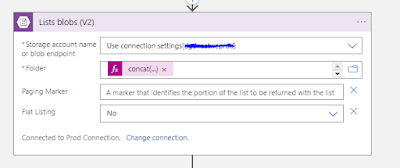
List Blobs from Azure Data Lake - Here you define the storage account, the connection method( we used access key)


In the next step, we have a for each control loop which iterates the output from the list blobs step, then gets the blob content( pass the path to the file ) and then this blob conent is passed on to a SharePoint 'Create File' step. 

It is important that the path is set up correctly and that the security credentials used have adequate access to the SharePoint. 


Thing to note: The 'Create file' comes with it's set of limitations as all things Microsoft do, where it can move a file of size greater than 1 GB, this is something we will have to live with for now( update as of 26th Jan). 

Friday, November 24, 2023

Find Log Analytics Key of Azure Log Analytics Instance

 Issue: Find the keys to connect to a log analytics instance in Azure.

Solution:  You can find this under Log Analytics Workspace > Agents > Log Analytics Agent Instructions


Thursday, November 23, 2023

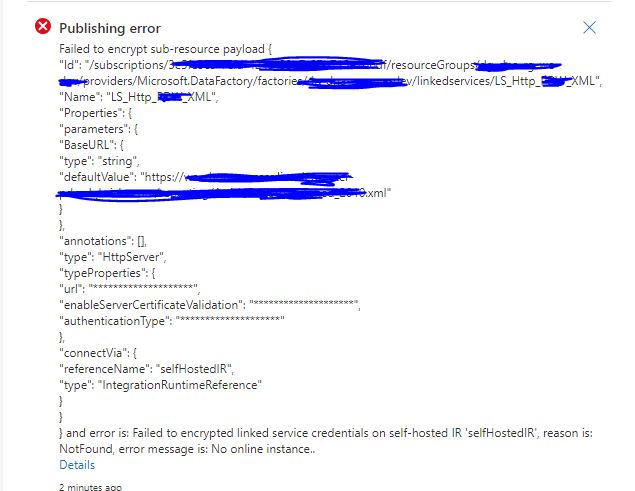
Synapse Analytics ADF Error - Failed to encrypt sub-resource payload or linked service credentials [Solved]

Issue: While trying to publish an HTTP or REST linked service connection from master to live, we get an error if it is going through a self hosted Integration run time to an on-premise network. 

Publishing error
Failed to encrypt sub-resource payload

and error is: Failed to encrypted linked service credentials on self-hosted IR 'selfHostedIR', reason is: NotFound, error message is: No online instance..


Cause: When you have a HTTP call that happens inside an on-premise network and you use a self hosted integration run time to connect to this, the first time the linked service is published it has to validate the connection and hence requires the Self Hosted IR to be up and running. 

Solution: The solution is to have the self hosted IR( Azure VM in our case ) up and running while trying to publish from master to live. This enables the validation of the linked service connection, this fixed it for us.

Please do let us know if this fix worked for you. 

Friday, September 1, 2023

Storage Event Trigger Error - Register Azure Event Grid resource provider

Issue: Trying to create a storage event trigger fails in Synapse/ Azure Data Factory with the below error 

Register Azure Event Grid resource provider to your subscription before creating an event trigger.

Cause: This is caused because Azure Event Grid resource provider is not added or enabled under your Azure Subscription. 

If you are using Azure Synapse Analytics, then you also need to have the Microsoft.DataFactory resource provider regsitered.

Resolution: You can follow the steps to register event grid and data factory resource provider to your subscriptions.


Step 1: go to portal.azure.com and select the subscription where you want to create the storage event trigger.

Step 2: under the subscription go to settings > resource providers.

Step 3: Search and Register the two resource Providers 

Registering Microsoft.DataFactory resource provider

Registering Microsoft.EventGrid resource provider

Try again and now it should be working. Let us know if this worked for you.

Thursday, August 31, 2023

ADF / Synapse - Error converting Excel to Parquet

Error in Synapse / Azure Data Factory

Aim - Build a pipeline that can take an excel as input in a file contianer and write into a parquet file. 

Issue:- When processing the file, the copy activity runs into an error saying one of the fields cannot have more than one value. 

"errorCode": "2200",

    "message": "ErrorCode=ParquetJavaInvocationException,'Type=Microsoft.DataTransfer.Common.Shared.HybridDeliveryException,Message=An error occurred when invoking java, message: java.lang.IllegalStateException:field 42 (COUNTRY_NAME) can not have more than one value: [Ägypten]\ntotal entry:6\r\norg.apache.parquet.example.data.simple.SimpleGroup.add(SimpleGroup.java:106)\r\norg.apache.parquet.example.data.simple.SimpleGroup.add(SimpleGroup.java:196)\r\norg.apache.parquet.example.data.Group.add(Group.java:59)\r\norg.apache.parquet.example.data.Group.append(Group.java:137)\r\ncom.microsoft.datatransfer.bridge.parquet.ParquetBatchWriter.readRow(ParquetBatchWriter.java:112)\r\ncom.microsoft.datatransfer.bridge.parquet.ParquetBatchWriter.addRows(ParquetBatchWriter.java:60)\r\n.,Source=Microsoft.DataTransfer.Richfile.ParquetTransferPlugin,''Type=Microsoft.DataTransfer.Richfile.JniExt.JavaBridgeException,Message=,Source=Microsoft.DataTransfer.Richfile.HiveOrcBridge,'",

    "failureType": "UserError",

    "target": "Copy Bronze - Excel to Parquet",


Cause:- This has to with the excel file having two or more columns with the same name. We had the field "COUNTRY_NAME" twice in the excel and this was causing the issue. 

Fix: Remove the duplicated field and re-process the file again.

Thursday, March 30, 2023

Self Hosted Integration Runtime sharing between Synapse Workspaces

Scenario: We have to connect to an on-premise SQL Server/Oracle database and have three synapse workspaces in Azure, DEV, UAT and PROD in three different subscriptions. 


Current- Architecture

To connect to these sources on the on-premise networks we have virtual networks set up on Azure, gateways and site to site connections to local network.

The downside of this is having to maintain a lot more from an administrator perspective,

  1. Three Virtual Networks 
  2. Peering between three networks
  3. Three seperate Virtual Machines to host the respective Azure Self Hosted IRs

Instead of this, we thought of simplifying it and having only one Virtual Network, one VM where self hosted integration runtime is hosted and the IR is shared by all three Synapse workspaces, see below architecture, 
Proposed Architecture with Shared Self Hosted IR.


Now comes the road-block here, sharing integration run-time is not yet available for Synapse Analytics ( reference - https://learn.microsoft.com/en-us/azure/synapse-analytics/data-integration/concepts-data-factory-differences#available-features-in-adf--azure-synapse-analytics  )


This seems to be something in the backlog for the Synapse Analytics Product team, I will be updating here if this comes out in any new releases. This will be really cool to have. 

Monday, January 23, 2023

Azure Synapse Analytics workspace outage in West Europe - 23rd January 2023

There seems to be a region wide outage for Azure Synapse Analytics workspaces in the West Europe Region. We have not been able to open up our synapse workspaces hosted in West Europe region from the morning.

Twitter users were the first to report this to Azure support early in the morning today in CET time.


It is really weird as Microsoft Health Service doesn't show any service as down in west europe region,


A couple of hours later they have put up a notification as an emerging issue on the same. 

Impact Statement: Starting at 05:30 UTC on 23 Jan 2022, a number of Azure Synapse Analytics customers with resources in West Europe may be experiencing connectivity issues when trying to access their workspaces. Current Status: We are aware of this issue and are currently investigating to understand the underlying cause and work on a mitigation strategy. Further updates will be provided in 60 minutes, or as events warrant.

Microsoft is yet to provide an ETA on the same. There have also been multiple community posts raised asking for help on the same. 

Users are calling out Azure for not reporting the same on health portal.

We will keep following up and sharing udpates here. You could also follow the below community portal question to get updates on the same. c

https://learn.microsoft.com/en-us/answers/questions/1163259/synapse-workspace-in-west-europe-not-opening-up

update 11:05 AM UTC 


Update 12:50 PMUTC

 Update 18:17 PM UTC ( Hotfix applied and rolled out)

Our instances are up at the moment.


Wednesday, January 18, 2023

Create Power BI user for Synapse Serverless SQL Pool to access External Delta Lake Tables

Problem Statement: You are trying to create a seperate user for reading datasets in Power BI. 

Issue: After creating the user login, you are facing this error while trying to read your external tables or view

Msg 13807, Level 16, State 1, Procedure Dim_ABC, Line 2 [Batch Start Line 0]
Content of directory on path 'https://data.dfs.core.windows.net/data/Gold/Dim_ABC/_delta_log/*.*' cannot be listed.
Msg 4413, Level 16, State 1, Line 1
Could not use view or function 'dbo.Dim_ABC' because of binding errors.


Solution: 

Step 1: Create a Master Key

CREATE MASTER KEY ENCRYPTION BY PASSWORD = '*******'

Step 2: Create a Database Scoped Credential with Managed Identity

CREATE DATABASE SCOPED CREDENTIAL [PowerBICredential]

WITH IDENTITY = 'Managed Identity' 

Step 3: Create a Power BI login

CREATE LOGIN PowerBI_RO WITH PASSWORD = '*******';

GO

CREATE USER PowerBI_RO FROM LOGIN PowerBI_RO

GO

ALTER ROLE db_datareader ADD  MEMBER PowerBI_RO;


Step 4 -Grant Access to Power BI Scoped Credential to Power BI login

GRANT CONTROL TO PowerBI_RO

GRANT REFERENCES ON DATABASE SCOPED CREDENTIAL::[PowerBICredential] TO PowerBI_RO


Step 5 - Create an External Data Source associated to this credential

CREATE EXTERNAL DATA SOURCE [DeltaLakeStorage]

    WITH (

        LOCATION = 'abfss://containername@datalakename.dfs.core.windows.net/'

        ,        CREDENTIAL= [PowerBICredential] 

    )


Step 6: Login and run a select statement and you should be able to use this to view delta lake tables.


Update(26th January): Microsoft Synapse Analytics youtube page has recently published a video tutorial on how to do this. - https://www.youtube.com/watch?v=_OZ7XUapJZs 

Monday, December 12, 2022

Pyspark - Hash() function creates duplicates - solved

 Aim - To create a unique integer identifier from a column in your pyspark dataframe. 

Issue:- When using the hash() function in pyspark it is very prone to hash collisions as you might see the same hash value for two different source column values, see example below,


Solution - Use the xxhash64() pyspark function to reduce such hash collisions. See the field now, which has been created with hash 64 algorithm, returning unique values in Product_Id_2


Note:- The new column being created using hash 64 would be a big integer and not an integer.

Wednesday, November 23, 2022

Synapse Analytics - Create Delta Lake Database or Schema or Table fails with java.lang.IllegalArgumentException: null

Issue - When trying to create a delta lake database or a schema or a delta lake table fails with an error java.lang.IllegalArgumentException: null path . 

Error sample screenshot


For a quick background, I am using a small sized cluster with 3-8 worker nodes and using a synapse notebook to execute the syntax. 

Error: 

The error log goes as below,

Error: org.apache.hadoop.hive.ql.metadata.HiveException: java.lang.IllegalArgumentException: null path
org.apache.spark.sql.hive.HiveExternalCatalog.withClient(HiveExternalCatalog.scala:111)
org.apache.spark.sql.hive.HiveExternalCatalog.createDatabase(HiveExternalCatalog.scala:193)
org.apache.spark.sql.internal.SharedState.externalCatalog$lzycompute(SharedState.scala:153)
org.apache.spark.sql.internal.SharedState.externalCatalog(SharedState.scala:140)
org.apache.spark.sql.hive.HiveSessionStateBuilder.externalCatalog(HiveSessionStateBuilder.scala:45)
org.apache.spark.sql.hive.HiveSessionStateBuilder.$anonfun$catalog$1(HiveSessionStateBuilder.scala:60)
org.apache.spark.sql.catalyst.catalog.SessionCatalog.externalCatalog$lzycompute(SessionCatalog.scala:133)

It hints at a path being null. 

Resolution:

The very first thing to check is whether the path you are trying to pass on while creating the table is correct or not, for example see the syntax below,

create TABLE lakedatabasename.tablename
USING DELTA
LOCATION 'abfss://container@datalake.dfs.core.windows.net/Path'

Check if the path exists by using the below syntax in a spark notebook, 

mssparkutils.fs.ls('abfss://container@datalake.dfs.core.windows.net/Path')

and this should list down all the files you have under the path,


If files get listed, it's not an issue with your path and you can rule that out.

The next thing to check is if the user you are using to create delta lake database/table has the permission 'BlobStorageDataContributor', this would be needed. 

For me both the above debug steps were okay, later I read that in synapse, delta lake creates metadata for lake database in the default container, and i had actually given the default container same name as my storage account while creation, so I had deleted the default container. 

This is where the template i extracted during resource creation came in handy for me, I checked the template and found that I had the same name for the 'defaultDataLakeStorageFilesystemName' parameter as well, see screenshot below, 


The fix was to create the default container name back in, so synapse can create the deltalake database metadata inside the same and re-run the same commands again.


The issue was raised by me and documented here in Microsoft Learn community here

Monday, November 21, 2022

Partitioned column data not displaying in External Table over Delta Lake in Serverless SQL Pool

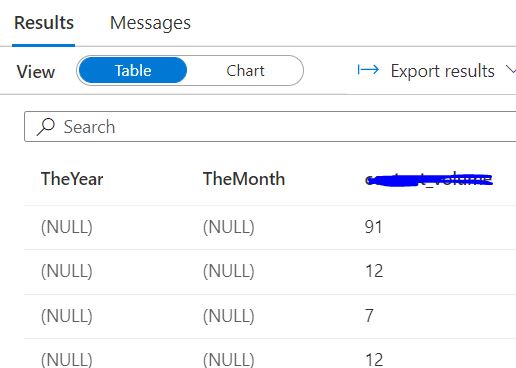
Issue: You are trying to create an external table over a delta lake folder path in your Azure Data Lake. The said delta lake table is paritioned over a few columns. For example, see below where the delta lake table is paritioned over fields, 'TheYear' and 'TheMonth'. 

Delta Lake

The path was then created as an external table in Azure Synapse, and queried upon, where you can see all columns from the delta lake except for the paritioned columns, please see screenshot below,


Cause: This seems to be because this is not a feature, Serverless SQL pool has started to support(reference).

Solution: However there is an alternate way of achieveing the same using a SQL view with OPENROWSET functionality. Then use this view to query the table further.

sample syntax as below, 

    CREATE VIEW vName AS 
    SELECT TOP 10 *
    FROM OPENROWSET(
            BULK 'Gold/Database/Table1/',
            DATA_SOURCE = 'DeltaLakeStorage',
            FORMAT = 'delta'
        )
        WITH (  TheYear VARCHAR(10),
        TheMonth VARCHAR(10),
        type VARCHAR(100),
        count BIGINT
            ) 


Wednesday, October 26, 2022

Error 403 - Failed to load resources in Azure Synapse Studio

Error: User with Owner access at subscription level getting a failed error while opening Synapse Studio, and not able to see any pipelines, linked service etc

Failed to load one or more resources due to no access, error code 403


Root Cause: Even if you have owner level privileges at the subscription level, you still  have to assign rights inside Synapse Studio.

Fix: Go to Synapse Studio > Manage tab


Go to Access Control > Click on Add


Add the user you want to give Administrator access to 


Now log out and login back to Azure Portal and back to Synapse Studio, now you would be able to see all the resources. 

Friday, October 21, 2022

Authorization Failed error while creating Azure Data Factory Instance

Issue description: New user not able to create an Azure Data Factory instance despite having owner or contributor group access at resource group level.

Error - The client '' with object id '' does not have authorization to perform action '' over scope '/subscriptions/' or the scope is invalid. If access was recently granted, please refresh your credentials. (Code: AuthorizationFailed) (Code: AuthorizationFailed)  

Root Cause - The root cause of this issue is that, when you setup a subscription, only a default set of Microsoft Providers are by default registered. 


Fix: Go to Subscriptions > Resource Providers and add/register the 'Microsoft.DataFactory' provider. 


Tuesday, December 14, 2021

PowerBI - Synapse Refresh Issue - 'Key didn't match any rows in table'

Issue: PowerBI was not able to refresh the underlying dataset from Azure Synapse in a higher environment in Import mode.

Sample error screenshot is below,

Error Screenshot PowerBI refresh

Cause : The issue was caused when in the higher environment, the schema name was created in upper case letters where as in the lower environment it was in lower case letters. 

Resolution: The fix in this case is to move objects from the existing uppercase schema to lower case, this will incur some effort if you are doing it, since first you will have to move it to a temporary schema name, then drop the uppercase schema name, create lowercase schema name and then move from the temporary schema to lowercase schema name.

Another option is to parameterize the schema in PowerBI and change at one place when you migrate to higher environment.

Sunday, November 28, 2021

Guidewire Datahub Architecture Explained

Guidewire Datahub is a P&C enterprise data warehouse solution built on top of the three key Guidewire Insurance Suite systems namely Guidewire Policycenter, Billingcenter and Claimcenter. It is a ETL framework that has been built using SAP BODS ETL tool and a java framework named DIAL for SCD Type 1 and Type 2 implementation. 

Focused on Property and Insurance clients, Datahub provides an operational datastore which provides a single version of truth and enabling clients to execute cross analytical queries across systems. The system also provides you capability to source data from external data systems. The layers of the architecture enables data quality and auditing to make sure that the data you have in target is clean and audited. 

Guidewire Datahub Basic Architecture

The first layer in the architecture are the sources, which can be either one of the three sources from PC, BC or CC, it can even be an external source or a legacy system. In this layer the data from the sources are loaded into a ftp source and from the ftp source to the relational database where Guidewire Datahub resides. 

The second layer is the Guidewire Datahub layer which is a relational dbms and can be in either Oracle Database or a SQL Server database. In this layer data is captured at an entity level in both Type 1 and Type 2. All the data cleansing, quality checks, balancing an auditing happens at this layer. This layer is loaded and managed using the SAP BODS or SAP Data Services tool.

The next layer is where you built out your star schema diagrams based on your reporting needs, this layer will have your facts and dimensions and will be used by IBM Congnos Analytics to cater to your reporting needs.

This forms the basic architecture of the Guidewire Datahub suite. Please do let me know if you would like me to cover more topics on the Guidewire Datahub suite.

Wednesday, September 15, 2021

Databricks Cluster termination due to Cloud Provider Launch Failure - Allocation Failed

Databricks Cluster Termination due to lack in Allocation of Resources


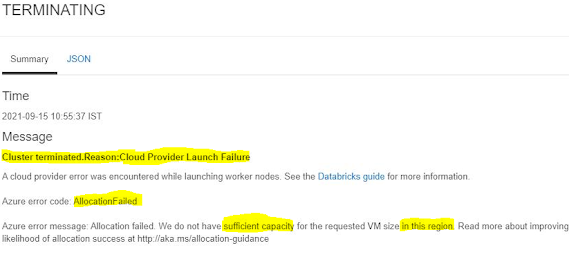
Issue: Restarting a terminated cluster gives the below error message

Cluster terminated.Reason:Cloud Provider Launch Failure

A cloud provider error was encountered while launching worker nodes. See the Databricks guide for more information.

Azure error code: AllocationFailed

Azure error message: Allocation failed. We do not have sufficient capacity for the requested VM size in this region. Read more about improving likelihood of allocation success at http://aka.ms/allocation-guidance


Cause: Allocation of resources failing as Azure cloud doesn't have requested VM size in the region.  This is a region specific error when the requested resources are too much for the region and doesn't have additional resources to get the cluster running.

Resolution:  Microsoft has documented the resolutions here in this article.

Update:- After waiting a while and a couple of restarts later, it started running again for us.

Saturday, August 28, 2021

Understanding Parquet file format - What, Why, How and When - Explained


What is Parquet Format ?

Parquet is a columnar(column-oriented) data format, which was initially built to support the Apache Hadoop ecosystem. It is a read optimized format, which allows efficient reads and efficient compression algorithms.

Why Parquet ?

When you have a dataset that you want to query very efficiently and improve query pruning, Parquet is one file format you could go for. Being a columnar storage option, it greatly improves upon the reads and minimizes Input Output operations on the data.

Below are the summarized advantages of Parquet files,

  1.  Efficient query pruning - With parquet format, columns that are not required while reading the dataset is efficiently pruned. This minimizes the IO operations, there by fast and efficient.

2. Able to process from large volumes of data, and has efficient data compression/encoding mechanisms, there by helping to reduce storage costs as well.

3, Parquet format, though initially built in the Apache Hadoop ecosystem, works well with most data lake storage systems, ADLS, S3, and is supported as external tables in almost all new generation columnar data warehouses.

4. Since parquet is read optimized and a column oriented data format, it is very efficient for data storage in OLAP workloads. Since in OLAP workloads, mostly we only fetch a subset of columns.

How is Parquet stored on disk ?

Below is an example of a parquet file being stored in an Azure Data Lake Gen2 system. The source dataset was small, hence you see just one file.


There are however other way storing where you have a root folder for your parquet and inside the root folder you have multiple part files which split and store the data in the parquet file, something as below,


The lesser part(partition) files you have, the faster your read performance would become. Parquet in spark allows setting the number of partitions(manual partitioning), the ideal scenario here is having a number of partitions somewhere between not very less and not many.

What are the compression schemes in Parquet ?

The most widely used compression scheme for parquet is the Snappy compression mechanism which can compress the original file to a smaller one, hence also contributing to the IO efficiency. Snappy compressed parquet files significantly improve on read performance than parquet files without encoding.

When should I use parquet ?

Parquet should be considered when you have an OLAP use case, and ideally where you have a subset of columns for a problem, the more the number of columns and unique values you have in the column, the lower the performance of parquet. So consider parquet where you have operations that happen on a subset of columns and where you are doing aggregations.

References and Further reads

I found some great beginner articles for the parquet format online, sharing the same below if you are interested to learn more,