Wednesday, November 23, 2022

Synapse Analytics - Create Delta Lake Database or Schema or Table fails with java.lang.IllegalArgumentException: null

Issue - When trying to create a delta lake database or a schema or a delta lake table fails with an error java.lang.IllegalArgumentException: null path . 

Error sample screenshot


For a quick background, I am using a small sized cluster with 3-8 worker nodes and using a synapse notebook to execute the syntax. 

Error: 

The error log goes as below,

Error: org.apache.hadoop.hive.ql.metadata.HiveException: java.lang.IllegalArgumentException: null path
org.apache.spark.sql.hive.HiveExternalCatalog.withClient(HiveExternalCatalog.scala:111)
org.apache.spark.sql.hive.HiveExternalCatalog.createDatabase(HiveExternalCatalog.scala:193)
org.apache.spark.sql.internal.SharedState.externalCatalog$lzycompute(SharedState.scala:153)
org.apache.spark.sql.internal.SharedState.externalCatalog(SharedState.scala:140)
org.apache.spark.sql.hive.HiveSessionStateBuilder.externalCatalog(HiveSessionStateBuilder.scala:45)
org.apache.spark.sql.hive.HiveSessionStateBuilder.$anonfun$catalog$1(HiveSessionStateBuilder.scala:60)
org.apache.spark.sql.catalyst.catalog.SessionCatalog.externalCatalog$lzycompute(SessionCatalog.scala:133)

It hints at a path being null. 

Resolution:

The very first thing to check is whether the path you are trying to pass on while creating the table is correct or not, for example see the syntax below,

create TABLE lakedatabasename.tablename
USING DELTA
LOCATION 'abfss://container@datalake.dfs.core.windows.net/Path'

Check if the path exists by using the below syntax in a spark notebook, 

mssparkutils.fs.ls('abfss://container@datalake.dfs.core.windows.net/Path')

and this should list down all the files you have under the path,


If files get listed, it's not an issue with your path and you can rule that out.

The next thing to check is if the user you are using to create delta lake database/table has the permission 'BlobStorageDataContributor', this would be needed. 

For me both the above debug steps were okay, later I read that in synapse, delta lake creates metadata for lake database in the default container, and i had actually given the default container same name as my storage account while creation, so I had deleted the default container. 

This is where the template i extracted during resource creation came in handy for me, I checked the template and found that I had the same name for the 'defaultDataLakeStorageFilesystemName' parameter as well, see screenshot below, 


The fix was to create the default container name back in, so synapse can create the deltalake database metadata inside the same and re-run the same commands again.


The issue was raised by me and documented here in Microsoft Learn community here. 

Monday, November 21, 2022

Partitioned column data not displaying in External Table over Delta Lake in Serverless SQL Pool

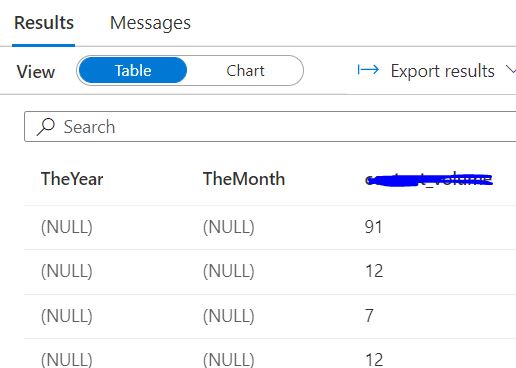
Issue: You are trying to create an external table over a delta lake folder path in your Azure Data Lake. The said delta lake table is paritioned over a few columns. For example, see below where the delta lake table is paritioned over fields, 'TheYear' and 'TheMonth'. 

Delta Lake

The path was then created as an external table in Azure Synapse, and queried upon, where you can see all columns from the delta lake except for the paritioned columns, please see screenshot below,


Cause: This seems to be because this is not a feature, Serverless SQL pool has started to support(reference).

Solution: However there is an alternate way of achieveing the same using a SQL view with OPENROWSET functionality. Then use this view to query the table further.

sample syntax as below, 

    CREATE VIEW vName AS 
    SELECT TOP 10 *
    FROM OPENROWSET(
            BULK 'Gold/Database/Table1/',
            DATA_SOURCE = 'DeltaLakeStorage',
            FORMAT = 'delta'
        )
        WITH (  TheYear VARCHAR(10),
        TheMonth VARCHAR(10),
        type VARCHAR(100),
        count BIGINT
            ) 


Wednesday, October 26, 2022

Error 403 - Failed to load resources in Azure Synapse Studio

Error: User with Owner access at subscription level getting a failed error while opening Synapse Studio, and not able to see any pipelines, linked service etc

Failed to load one or more resources due to no access, error code 403


Root Cause: Even if you have owner level privileges at the subscription level, you still  have to assign rights inside Synapse Studio.

Fix: Go to Synapse Studio > Manage tab


Go to Access Control > Click on Add


Add the user you want to give Administrator access to 


Now log out and login back to Azure Portal and back to Synapse Studio, now you would be able to see all the resources. 

Friday, October 21, 2022

Authorization Failed error while creating Azure Data Factory Instance

Issue description: New user not able to create an Azure Data Factory instance despite having owner or contributor group access at resource group level.

Error - The client '' with object id '' does not have authorization to perform action '' over scope '/subscriptions/' or the scope is invalid. If access was recently granted, please refresh your credentials. (Code: AuthorizationFailed) (Code: AuthorizationFailed)  

Root Cause - The root cause of this issue is that, when you setup a subscription, only a default set of Microsoft Providers are by default registered. 


Fix: Go to Subscriptions > Resource Providers and add/register the 'Microsoft.DataFactory' provider. 


Tuesday, December 14, 2021

PowerBI - Synapse Refresh Issue - 'Key didn't match any rows in table'

Issue: PowerBI was not able to refresh the underlying dataset from Azure Synapse in a higher environment in Import mode.

Sample error screenshot is below,

Error Screenshot PowerBI refresh

Cause : The issue was caused when in the higher environment, the schema name was created in upper case letters where as in the lower environment it was in lower case letters. 

Resolution: The fix in this case is to move objects from the existing uppercase schema to lower case, this will incur some effort if you are doing it, since first you will have to move it to a temporary schema name, then drop the uppercase schema name, create lowercase schema name and then move from the temporary schema to lowercase schema name.

Another option is to parameterize the schema in PowerBI and change at one place when you migrate to higher environment.